Connect Zoom
Meeting load, attendance, and (with consent) Zoom meeting recordings for call-quality scoring.
Prerequisites
- Zoom account owner or admin: Server-to-Server OAuth apps must be created at the account level
- A PerfCopilot admin account (the Connect button is only visible to admins)
- For recording ingest: audio-ingest consent must be enabled on the Zoom card
1. Generate credentials in Zoom
- Sign in to https://marketplace.zoom.us.
- Click Develop → Build App → choose Server-to-Server OAuth.
📖 Official guide: Create a Server-to-Server OAuth app, Zoom's own documentation for creating this credential.
-
Fill in the basic info (app name "PerfCopilot", company, contact).
-
On the Scopes tab, add the four granular scopes below. PerfCopilot needs all four: the first one to list your users for directory sync, the next two to pull recording metadata + transcript files, and the last one to identify external participants on past meetings.
Scope Why we need it user:read:list_users:adminSync your Zoom user list so PerfCopilot can map each Zoom account to a PerfCopilot employee. cloud_recording:read:list_user_recordings:adminList each user's Zoom Cloud Recordings within the cycle window. cloud_recording:read:list_recording_files:adminFetch the actual transcript VTT files attached to a recording. meeting:read:list_meetings:adminRead past-meeting participants to classify each call as customer-facing vs internal. Zoom migrated to granular scope names. Short forms like
user:read:adminorrecording:read:adminare not equivalent and won't satisfy the API. If a scope above isn't in your picker by the exact slug, search the Scopes tab for the closest match (Zoom labels them with human-readable names like "View all users" or "View user's cloud recordings"). If you ever see an error likedoes not contain scopes:[<some-slug>], copy that slug verbatim into the Scopes tab. Zoom's error names the exact scope it wants. -
Click Activate to enable the app.
-
Open the App Credentials tab and copy all three values: Account ID, Client ID, Client Secret.
Copy these values; you'll paste them in the next step:
account_idclient_idclient_secret
2. Paste into PerfCopilot
-
Open Integrations on your PerfCopilot admin.
-
Find the Zoom card and click Connect (or Manage if already configured).
-
Paste each value into the matching field:
Field in PerfCopilot Value from step 1 account_id <your value>client_id <your value>client_secret <your value> -
Click Save.
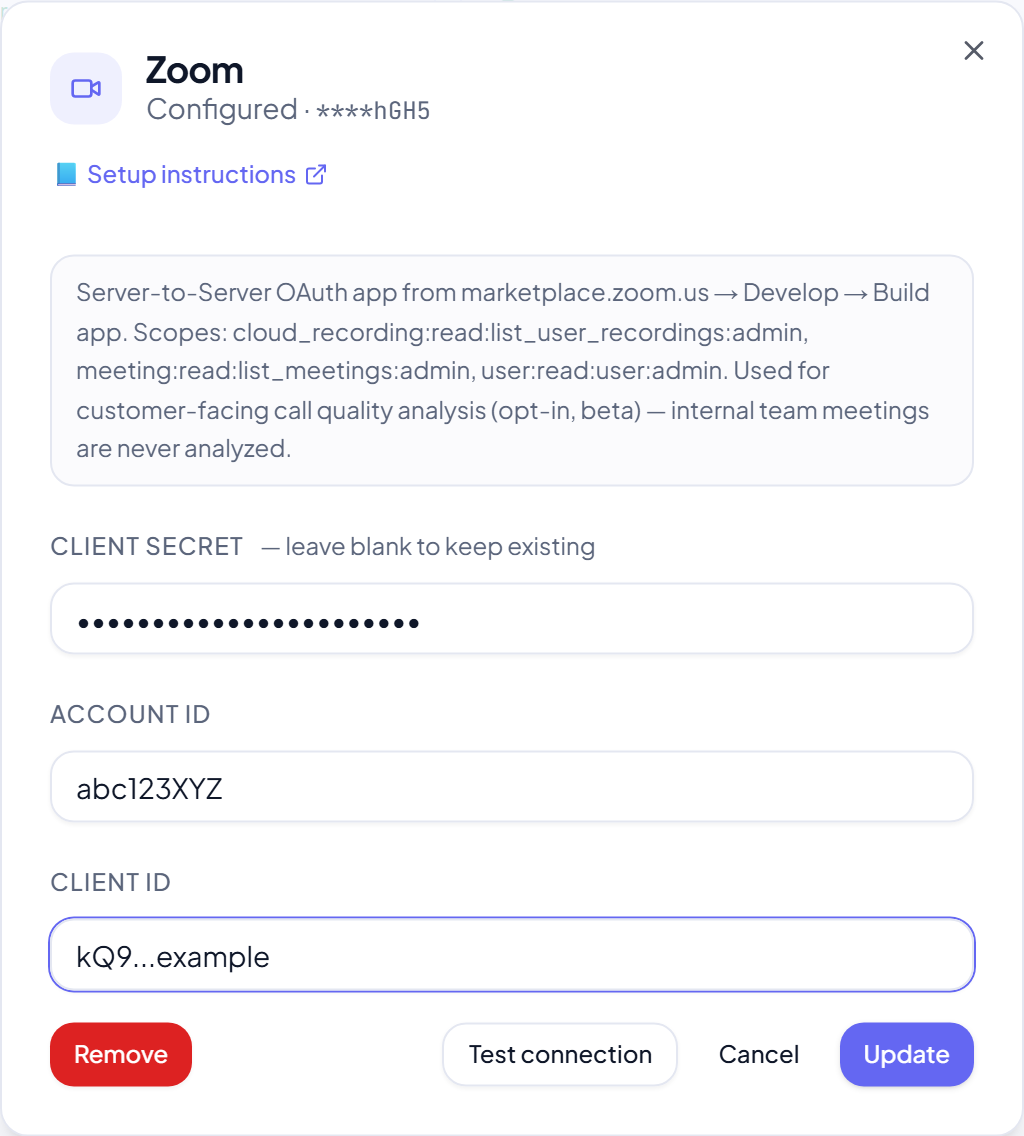
3. Verify
Click Test in the drawer. Expected:
✅ Authenticated as your-account@company.com
If you see a red error, jump to Common errors.
Common errors
| Message | What it usually means | Fix |
|---|---|---|
OAuth token mint failed: HTTP 400 | One of the three credentials is wrong. | Re-paste Account ID, Client ID, Client Secret from the Zoom App Credentials tab. They are easy to mix up. |
HTTP 400, code 4711: Invalid access token, does not contain scopes:[<scope-name>] | The app's scope set is missing the scope named in the error. | Edit the app, add the literal scope from the error message (e.g. user:read:list_users:admin), re-activate, retry. Zoom uses granular slugs. Short forms like user:read:admin are not always equivalent. |
HTTP 403: invalid scope | Same root cause, older variant. | Same fix: match the literal slug from the error. |
HTTP 401: <body excerpt> | Credentials rejected. | Re-check that you copied each value cleanly, no leading/trailing whitespace. |
"I connected Zoom but no calls show up"
If the integration shows as connected, directory sync populated your users, but your Calls tab is empty after a meeting you expected to see, one of these is almost always why:
- The meeting wasn't a Cloud Recording. Zoom's API only sees recordings stored in Zoom Cloud. Local recordings (saved to your computer) are invisible to us. To check: open https://zoom.us/recording. If the meeting isn't listed there, it wasn't cloud-recorded. Going forward, the host needs Cloud Recording enabled in their Zoom profile or set as the account-wide default.
- Auto-transcription wasn't enabled for the meeting. Cloud Recording creates the video, but Zoom only generates a transcript (the file we actually analyze) if Audio transcript is turned on in Zoom Account Settings → Recording. If your recording at https://zoom.us/recording shows only an MP4 + chat but no Transcript row, this is the cause. Zoom can't retroactively transcribe past recordings. Turn it on now so future meetings get scored.
- The transcript is still processing. Zoom transcribes asynchronously after each meeting, typically 10–30 minutes, occasionally longer for long meetings or the first transcript on a brand-new app while Zoom warms up entitlement checks. Wait 30 minutes after the meeting ends, then re-run Sync all on your dashboard.
What signals we pull
phone_quality: meeting-recording transcript scores (only when audio-ingest consent is enabled)
Need a feature you don't see? Tell us →.