Connect BambooHR
Employee directory, time-off / attendance days, and (Performance module) goals.
Prerequisites
- BambooHR admin with API-key permission
- A PerfCopilot admin account (the Connect button is only visible to admins)
1. Generate credentials in BambooHR
- Sign in to your BambooHR account.
- Click your avatar in the top-right → API Keys.
📖 Official guide: Getting started with the API: BambooHR's own documentation for creating this credential.
- Click Add a new key, name it "PerfCopilot", and copy the generated key.
- Note your BambooHR subdomain (the
<this>inhttps://<this>.bamboohr.com).
Copy these values; you'll paste them in the next step:
subdomainAPI key
2. Paste into PerfCopilot
-
Open Integrations on your PerfCopilot admin.
-
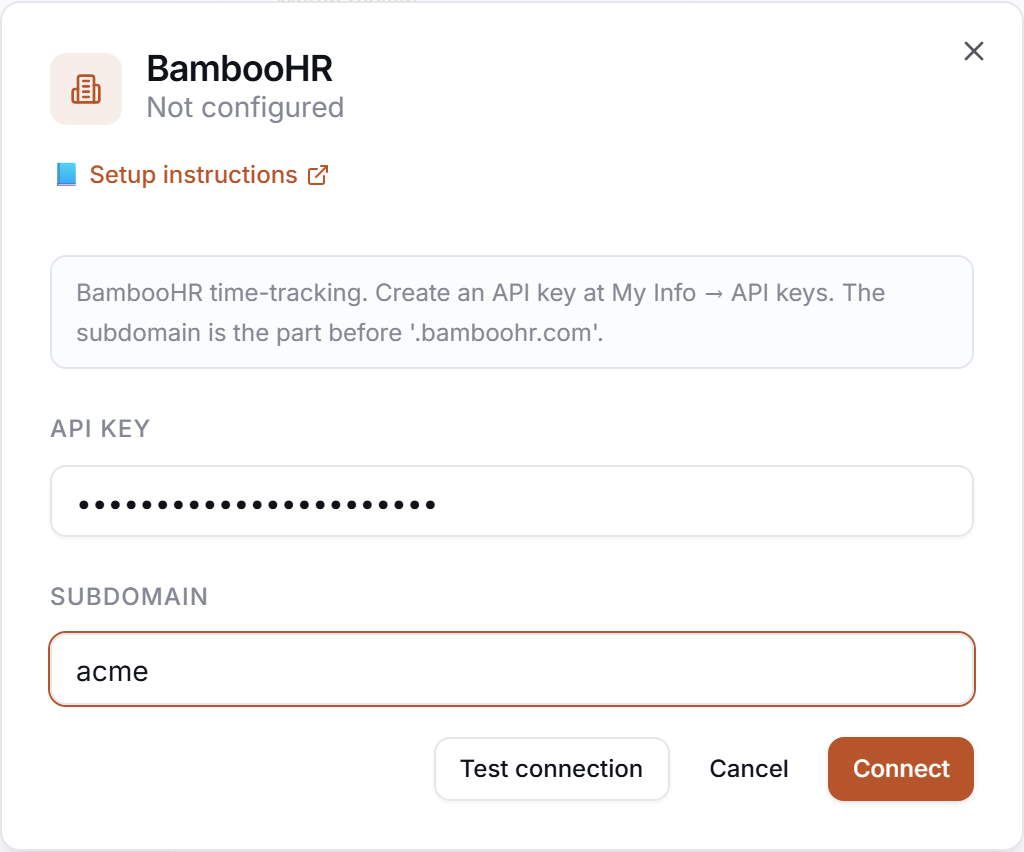
Find the BambooHR card and click Connect (or Manage if already configured).
-
Paste each value into the matching field:
Field in PerfCopilot Value from step 1 Subdomain <your value>API key <your value> -
Click Save.
3. Verify
Click Test in the drawer. Expected:
✅ Authenticated as your.name@company.com
If you see a red error, jump to Common errors.
Common errors
| Message | What it usually means | Fix |
|---|---|---|
HTTP 401 | API key was revoked, or the subdomain is wrong. | Confirm the subdomain matches https://<subdomain>.bamboohr.com, then regenerate the API key under API Keys and re-paste. |
HTTP 403 on /meta/users | API key has no user-read permission. | Regenerate the key from an account that has full directory access. |
HTTP 401: <body excerpt> | Credentials rejected. | Re-check that you copied the full token, no leading/trailing whitespace. |
What signals we pull
attendance: time offgoals: if the Performance add-on is enabled on your BambooHR planroster: full employee directory + manager hierarchy (HRIS sync; see below)
Employee / roster sync (HRIS)
Once the BambooHR integration is connected, the Team tab in /admin shows a Sync from BambooHR button. Clicking it pulls the full BambooHR directory and reconciles it with your PerfCopilot employee list:
- New employees in BambooHR are created in PerfCopilot (matched by email, manually-added employees with the same work email are merged, not duplicated).
- Existing employees have their job title, department, hire date, and manager updated to match BambooHR (HRIS-managed fields).
- Manager hierarchy is resolved in a second pass: supervisor links
come from BambooHR's
supervisorEIdwhen available, falling back to display-name match. - Offboarded employees (status = Inactive in BambooHR, or no longer in
the directory) are flagged
is_active = falsein PerfCopilot. We do not delete the row. Review history is preserved.
Hire date feeds the tenure-bias screen in the review draft and the cycle-eligibility gate ("only review employees hired before period_start").
The sync is idempotent: re-running with no changes upstream is a no-op. Re-run any time roster changes happen in BambooHR; we do not yet auto-sync on a cron (manual trigger only for v1).
Need a feature you don't see? Tell us →.